
Support
How do I set up email on my iPhone?
Your eTo set up your Springwood Web Solutions mailbox on an Apple iPhone or iPad, you need to:
- Head to the Settings icon and locate the Accounts & Passwords option
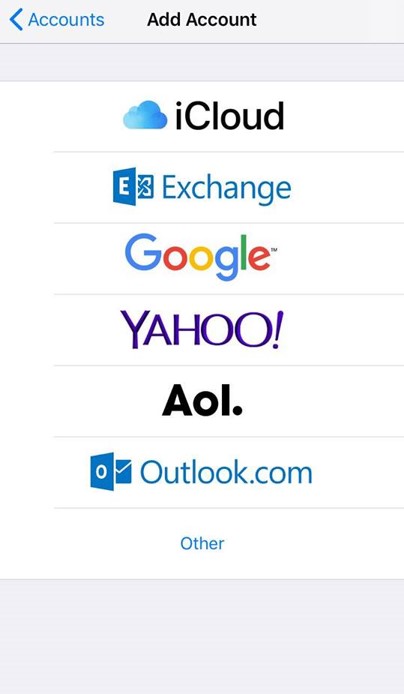
- Then select Add Account
- Select Other from this list
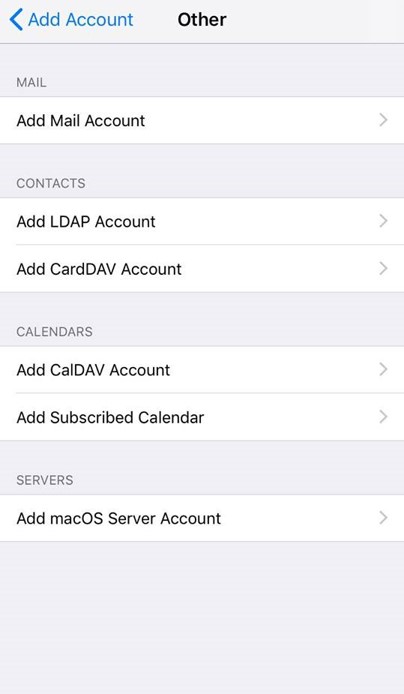
- Select Add Mail Account
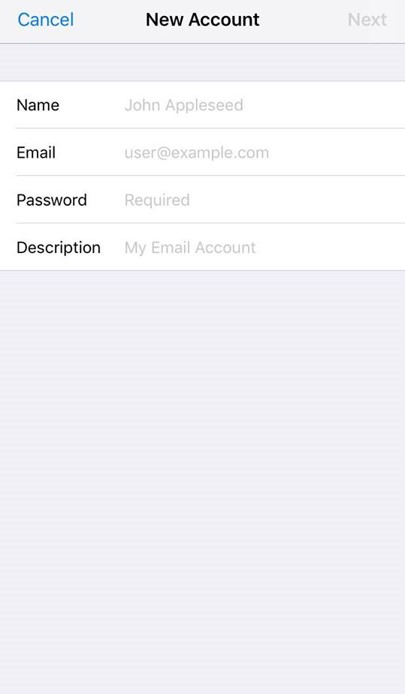
- Input the information requested
Name: Anything
Email: example@yourdomain.com
Password: Mailbox Password
Description: Work, Business…etc
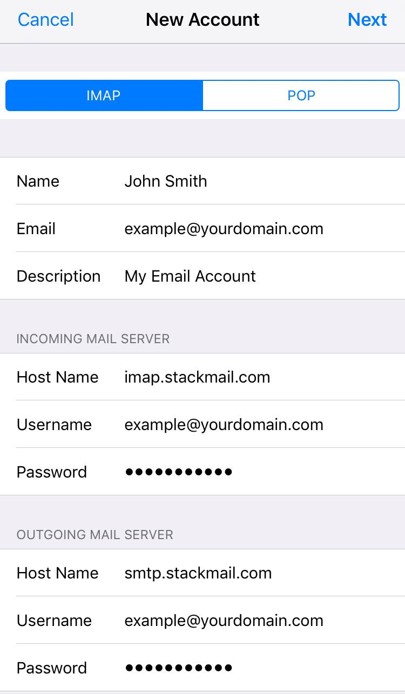
IMAP:
INCOMING MAIL SERVER
Host Name: imap.stackmail.com
Username: example@yourdomain.com
Password: Mailbox Password
OUTGOING MAIL SERVER
Host Name: smtp.stackmail.com
Username: example@yourdomain.com
Password: Mailbox Password
Finally, select the mail account and go into Advanced Settings.
In INCOMING SETTINGS make sure Use SSL is switched ON and the Server Port is set to 993
In OUTGOING MAIL SERVER make sure Use SSL is switched ON, check your password is saved in Authentication and the Server Port is set to 465
Click Done. Your email account should now be set up on your iPhone or iPad.
More Support Articles
Email Accounts
How do I set up email in Microsoft Outlook?
How do I set up email on my iPhone or iPad?
How do I set up email on my Android device?
